If you’re reading this, chances are you’re in a spot where regular messaging apps (WhatsApp, Signal, even walkie-talkies) just don’t cut it—too many dead zones, lag when you’re coordinating a construction crew, or not enough privacy for your team. That’s where 4G LTE PoC radios come in. As a supplier of these bad boys, I get asked all the time: “How do I actually set up a private group?” Not the basic “tap a button” stuff that leaves gaps, but the kind that keeps your team talking without random outsiders peeking in. I’ve walked through this with hundreds of clients, from small construction sites to event security teams, and let me tell you, it’s way simpler than it sounds—no need to be a tech genius. Let’s break it down step by step, the way I actually talk to customers on the phone. 4G LTE Poc Radio

First, a quick pre-check before you even touch the radios. A lot of people skip this and end up frustrated mid-setup, so trust me on this. You can’t run a private PoC group without two things: a solid 4G LTE signal in your area, and a valid data plan for each radio. Wait, before you roll your eyes—no, it’s not a big data drain. PoC radios only send small bits of voice, not streaming video, so a 1GB monthly plan is more than enough for a team of 10. I always tell clients to test the signal first: take one radio, turn it on, see if it connects to the network (it’ll show a “4G” or “LTE” icon, not just a weak “2G” bar). If your site is in a dead zone, you might need a tiny signal booster—those are like $50, way cheaper than ditching PoC for old walkie-talkies that die after an hour. Another thing: make sure all the radios are on the same PoC platform. Most of my clients use the standard one I supply, but if you mixed brands, that’s a no-go. PoC relies on the backend server, so if two radios are on different servers, they’ll never talk. That’s a common mistake, right off the bat.
Now, let’s start with the hardware basics. Unbox your radios—you’ll get a handheld radio, a battery, a charger, and a quick start guide that’s probably 10 pages of jargon we both ignore. First, charge the battery fully. I know, it sounds obvious, but half the time someone’s radio dies mid-setup because they skipped charging it overnight. Once charged, turn it on: hold the power button for 3 seconds until the screen lights up. You’ll see a “Welcome” screen, then it’ll prompt you to log in. Wait—each radio has a unique IMEI number, which is like its phone ID. I link that to your account when you first sign up, so you’ll get a username and password from me. Yeah, that’s on me as the supplier—just hit me up before setup, and I’ll send those over. No complicated registration forms, promise.
Once you’re logged in, the next step is creating the private group. This is where the privacy kicks in. On most PoC radios, the menu button is the big square icon in the bottom left (or sometimes the menu button on the side—depends on the model I sell). Tap that, and you’ll see options like “My Contacts,” “Groups,” “Settings,” and “Firmware Update.” Go to “Groups,” then select “Create New Group.” Now, name it something your team will recognize—“Site A Crew” or “Night Shift Security.” Don’t name it “Private Group,” that’s the one outsiders will target. I always suggest adding a little unique detail, like your company initials, to make it extra clear it’s yours.
Next, adding members. This is where you keep it private, not just adding random people. You’ll have two options here: “Add Contacts From Device” or “Invite via IMEI/Username.” The first one is easy—if your radio is linked to your account, it’ll pull up all the other radios you registered. Just check the box next to each team member’s radio. The second option is if someone’s radio isn’t showing up—you’ll just type their unique username or IMEI (it’s on the back of the radio, under the battery) and hit “Add.” Here’s a pro tip: when adding members, make sure you uncheck the “Allow External Invitations” box. That’s the big one for privacy. If that’s checked, someone could send a random invite to your group, and an outsider could join. Lock that box, and only people you add can be in the group.
Wait, what if you have more than 10 people? Some clients run teams of 50 on one group. No problem, most modern PoC radios handle up to 100 members without lag. But if you have a huge crew, split them into smaller subgroups—like “Foremen” and “Workers”—you can still have a main group for all-hands calls, but subgroups for quick check-ins. That keeps the noise down too, which is a win.
Now, test the group. This is non-negotiable—don’t just set it and forget it. Take two radios, go to the group, hold the push-to-talk (PTT) button, say a quick test message like “Group test 1-2-3,” let go, and see if the other radio plays it. If it does, great. If not, check a few things: first, is the signal strong enough? Move a few feet if you’re in a metal shed. Second, did you add the right IMEI? Double-check that each member’s radio is linked to your account—sometimes when you’re adding a bunch, a typo happens. Third, is the group set to “Private” mode? A lot of radios default to “Public” if you skip a step, so go back to Group Settings and confirm it’s marked as private, not public. That’s how people end up with random strangers joining their groups—public mode lets anyone with the group name join, private mode only lets approved members.
Another thing: admin controls. As the group creator, you’re the admin. That means you can remove members, change group names, or even pause the group if you need to. I tell all my clients to assign one other trusted team member as a co-admin too—if you’re on a job site and not around, they can handle adding a new hire or kicking someone out who shouldn’t be there. To add a co-admin, go to Group Members, tap the person’s name, select “Make Admin,” and boom. Easy.
Now, common issues I see all the time, and how to fix them without calling me. First, lag. If messages take 2-3 seconds to come through, that’s usually weak signal. Try moving to a higher spot, or adding that signal booster I mentioned earlier. Second, members can’t hear each other. Check that their PTT button isn’t stuck—sometimes dirt gets under it, or the battery is loose. Pop the battery out, wipe the contacts with a dry cloth, and put it back in. Third, someone’s radio isn’t showing up in the group. Double-check that they have a data plan active—even if it’s a $5 plan, no data means no network connection. Also, make sure their radio is running the latest firmware. I send out automatic updates, but if someone ignored it, that can cause glitches. If none of that works, just shoot me a message—I’ll walk you through it over the phone, no extra charge.
Wait, let’s talk about privacy features you might not know about. Most of the PoC radios I sell have end-to-end encryption for group calls, right? That means no one—not even us, as the supplier—can listen in on your conversations. That’s a big deal if you’re talking about sensitive things like construction blueprints, security protocols, or event guest details. When you create the private group, make sure you enable encryption in the Group Settings. It’s a toggle switch, usually labeled “E2EE” or “End-to-End Encryption.” If it’s off, your calls are sent over the internet unencrypted, which is like sending a postcard instead of a sealed letter. Flip that switch, and your group talks are totally private.
Another privacy tip: don’t share your group’s name with anyone outside your team. I know it sounds basic, but I had a client last year who named their group “Downtown Festival Crew” and posted the group name on their social media. Some random person found it, joined the public group, and started spamming them. That’s why keeping the group name obscure—add a company code, like “CrewAlpha2024” instead of something generic—keeps the creeps out.
Now, what if you need to set up multiple private groups? A lot of clients are managing different sites, or different shifts, so they need separate groups. Each radio can be in up to 10 groups, so you don’t need a new radio for every team. Just go back to the Create Group menu, make a new one for Site B, add the right members, and you’re done. You can switch between groups with a quick tap on the radio’s screen—no logging out and in, which is way faster when you’re jumping between tasks.
Let’s wrap this up with a quick recap, because I know step-by-steps can get overwhelming. 1. Pre-check: confirm 4G signal, get data plans, make sure all radios are on the same platform. 2. Log in with your supplier-provided username/password. 3. Create a named group, enable private mode and encryption. 4. Add members via IMEI/username, lock invites so no one else can join. 5. Test with two radios, fix any issues. 6. Add co-admins for backup. That’s it. No fancy tech, no complicated software, just a few taps.
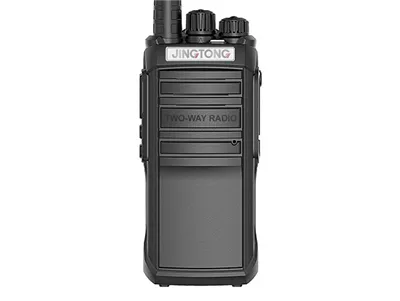
Now, if you’re still on the fence, or you ran into a snag mid-setup, let’s chat. Whether you need help choosing the right radios for your team, troubleshooting a group that won’t connect, or adding more members to an existing private group, I’m here to help. We’ve got flexible plans for teams of all sizes, from 5 people to 500, and we’ll walk you through every step of the way—no tech jargon, no upsells you don’t need. If you’re ready to get your private group set up the right way, just reach out and we can discuss your needs.
4g and Analog Radio References:
- 4G LTE PoC Radio Technical Specifications, Private Communication Industry Standards 2024
- Handheld Radio Group Setup Best Practices, Worksite Communications Association Guidelines
- End-to-End Encryption Protocols for Mobile Radios, Cybersecurity for Team Communication Tools
Jingtong (Quanzhou) Electronics Co., Ltd.
We are one of the most professional 4g lte poc radio manufacturers and suppliers in China, specialized in providing high quality customized service. We warmly welcome you to buy durable 4g lte poc radio made in China here from our factory. For price consultation, contact us.
Address: No.288, Si Huang Industry Zone, Xia Mei Town, Nan An, Quanzhou, Fujian province, China 362302
E-mail: jtdjj@jtdjj.com
WebSite: https://www.jteradio.com/
